
KeyShot Machined Metal














Metal looking fake?
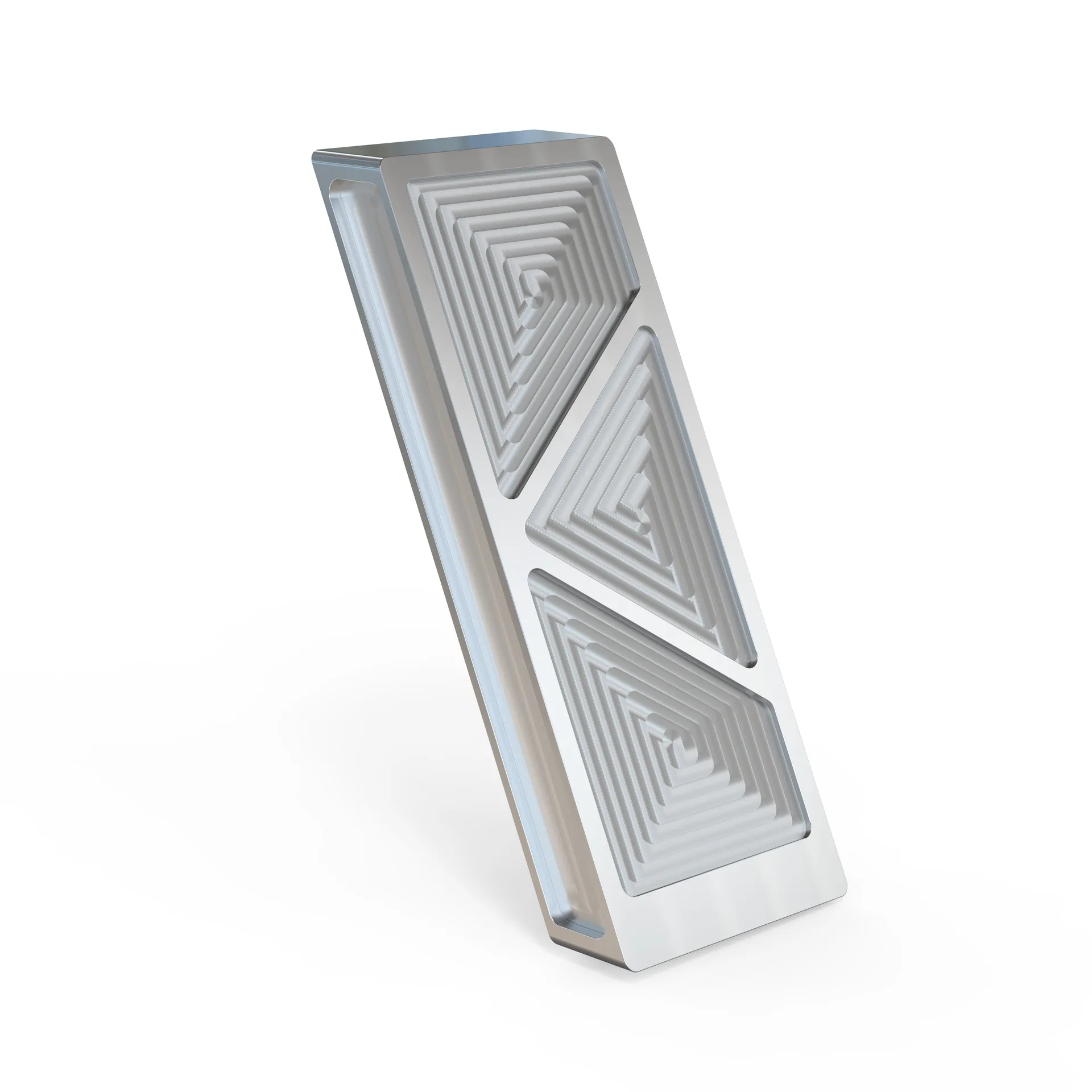
Machined metal is a surface finish that shows up constantly in industrial and consumer product design. CNC tool paths leave distinctive circular or linear marks on metal surfaces that catch light in a very specific way — and getting that to look right in a rendering requires a technique that goes beyond KeyShot's standard material library.
This tutorial covers a method that produces results that are genuinely convincing. It takes a bit of work, but the outcome is worth it if machined metal surfaces are something you render regularly.
What This Tutorial Covers
The tutorial is split into two sections.
KeyShot
How to set up and apply a machined metal material in KeyShot using custom textures and the anisotropic material type to replicate the look of CNC tool path marks accurately.
Adobe Illustrator
How to create your own custom machined metal textures from scratch in Illustrator so you can generate exactly the pattern and scale you need for any project.
After completing the tutorial you'll be able to create custom machined metal textures for your own projects and know how to apply them correctly in KeyShot.
Everything You Get When You Enroll
✓ 6 step-by-step tutorial videos (~50 minutes total)
✓ All project files referenced in the tutorial
✓ Lifetime access

Meet your KeyShot instructor
Since then I've started my own visualization studio and taught thousands of students through my courses. I built this one to give you the shortcut I never had — the real techniques and workflows, without the years of trial and error it took me to find them.



What if you don't like the course?
While I have done my best to create an amazing course and describe it accurately, I understand that I can't please everybody.
If you take the course and feel like I did not deliver on the value I promised, just email me asking for a refund. I will issue one.
To be eligible for a refund, the request must be made less than 90 days from date of purchase.



